Regional note: For Asia-Pacific customers, this feature applies to your Trust Account. For European customers, this applies to your Client Account. Owner statement functionality is not available for customers in North America. For more on regional terminology, see the Glossary of Regional Terminology.
Owner statements in Re-Leased give you flexible options to control how statements look, what information they display, and how they're generated. This article covers the available statement formats, how to customise your display settings, and how to view and produce owner statements.
For an interactive walkthrough, see Section 8 of the self-guided learning video:
- Settings for Trust Accounts (Asia-Pacific)
- Settings for Client Accounts (EMEA)
Owner statement formats
Re-Leased offers several owner statement formats, all featuring a refreshed design with distinct Header, Body, and Footer sections. All formats include:
- An option to display the ledger name in the header (not available on the Combined Statement for All Ledgers – Residential)
- Privacy options to anonymise sensitive details such as bank information and owner group data
- Customisable accent colours to match your company's branding
The Separate Balances Statement and Separate Detailed Statement also include:
- Landscape orientation for statements with extensive data
- Closing balance details when the closing amount is not zero
- Gross amounts (Separate Balances Statement only)
- Option to include tenancies with no activity
The Separate Detailed Statement additionally supports:
- Option to show tenant-occupied areas
Customise your owner statement display settings
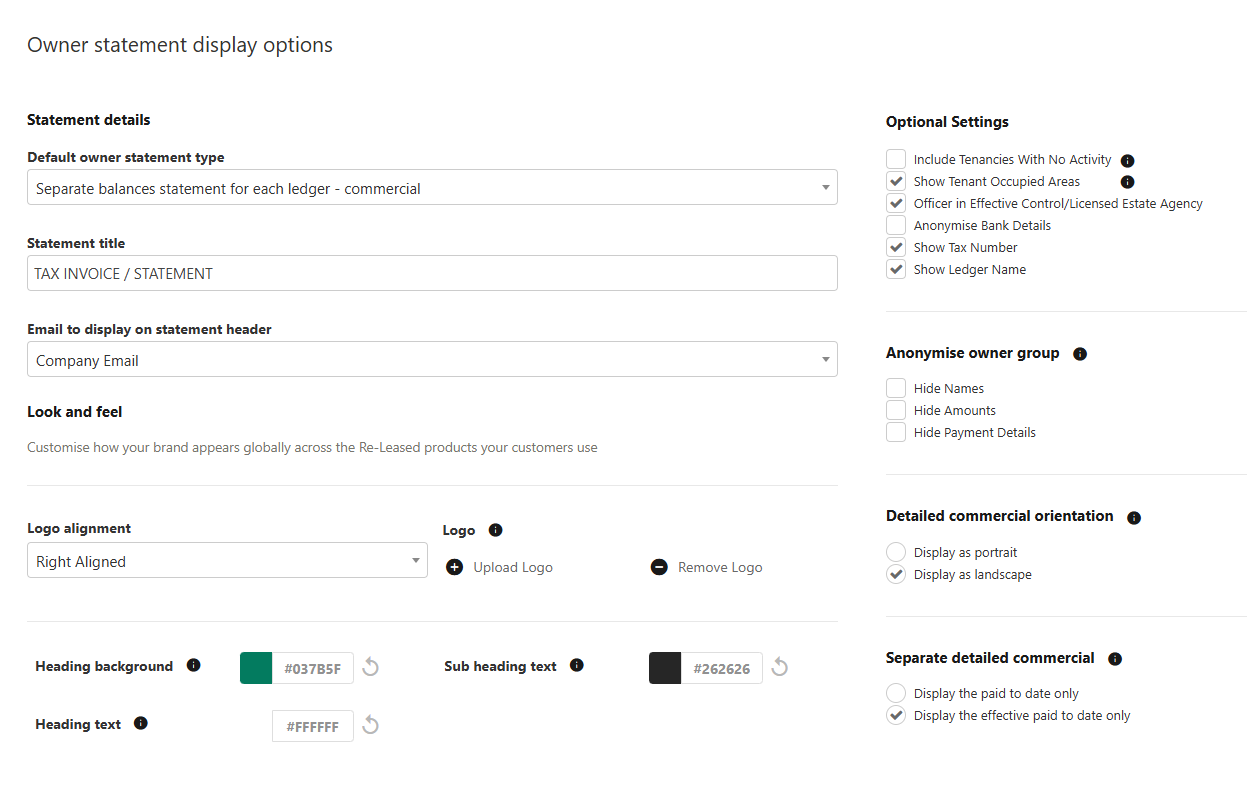
You can control how owner statements look across your portfolio from the Owner Statement Options page.
- Go to Settings and select Owner Statement Options under the Communications section.
- Set your default statement type for new companies, and update the statement title and display email as needed.
- Adjust logo placement and accent colours to align with your branding.
- Choose whether to show details such as your tax number and account name.
- Enable privacy features to obscure sensitive information or anonymise bank details.
- Select Portrait or Landscape orientation for detailed commercial statements.
- Use the preview at the bottom of the page to check your changes before saving.
- Click the green Save button to apply your settings.
 Adjust display settings for an individual owner
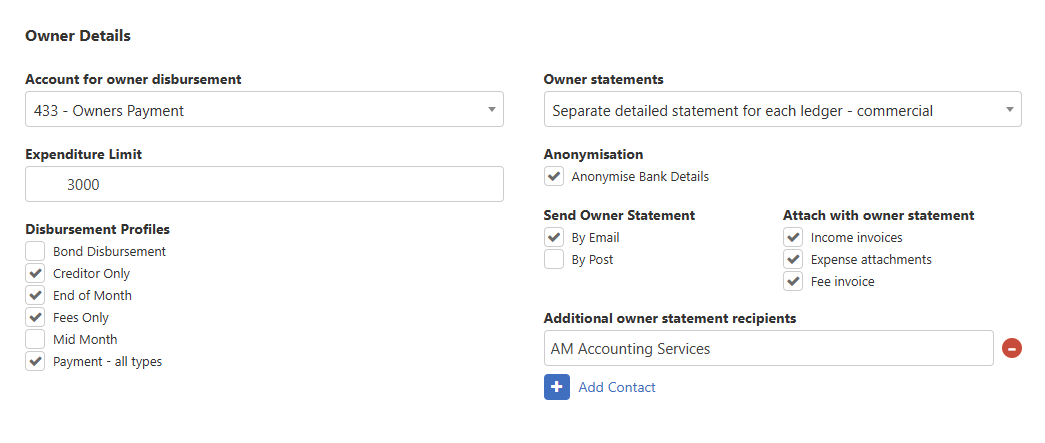
You can override display settings at the owner or owner group level when you need to handle exceptions.
- Go to Contacts and select Owner.
- Open the relevant owner's Contact details.
- Here you can anonymise banking information for that owner, or hide specific details for owner group members.
 Understanding your first owner statement start date
The start date for your first owner statement determines the reporting period and is set automatically based on the following:
- The date of the first recorded transaction on the ledger — such as a journal entry, invoice, or credit note.
- If no transactions exist, Re-Leased uses the ledger creation date as the default start date.
Example: A ledger created on 5 November 2023 with no transactions will have a statement start date of 1 November 2023.
How statement types determine their start date
Each statement type uses transaction dates differently to set its reporting period:
- Balances Statement: Uses the oldest issue date from invoices or credit notes.
- Short and Detailed Commercial Statements: Uses the oldest due date from invoices or credit notes.
- Cash-Based Statements: Uses the oldest journal transaction date, excluding invoices.